Adding Pages. To add a new page to your web site,
Choose File... New... Page, or click on the New Page icon (  ). The first thing you should do when you open up a new page is save it.
Click the Save icon (
). The first thing you should do when you open up a new page is save it.
Click the Save icon ( ),
or choose File... Save As..., this will open up the Save As Dialog box:
),
or choose File... Save As..., this will open up the Save As Dialog box:

Type a name (use all lowercase, no spaces, etc. See Adding pictures for hints on filenames). Then click the Change... button to change the title of the page:
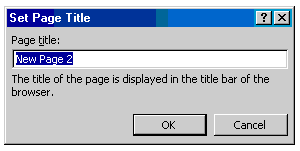
Choose something descriptive to describe the page. Whatever you type will show up at the top of the browser when someone is looking at that page.
Adding Links. To add a link, select the text or picture
you want to be a link, then click the Hyperlink Icon ( ),
or Choose Insert... Hyperlink...
),
or Choose Insert... Hyperlink...
This will bring up the Create Hyperlink Dialog box:
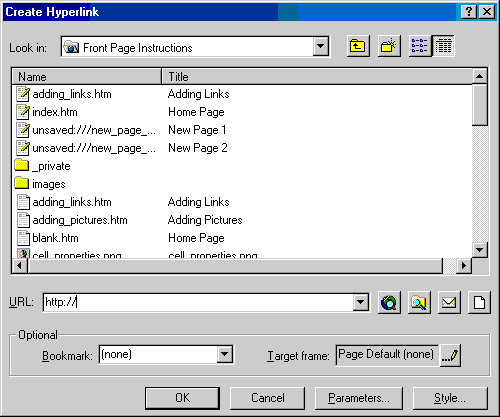
From there, you can type in the URL to an external web site, or double-click on the name of another page in your site.
Next: Publishing Your Page