To make a web page, start by creating a new "web" from within
Microsoft FrontPage. A "web" is just a special folder on your
computer which contains all the files that are part of your web site.
Usually, these special folders go in the My Documents \ My Webs folder.
To make a new web: start FrontPage, then do File... New... Web:
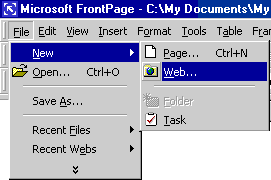
This will bring up a dialog box which will ask you what kind
of web you want to make, and what you want to name the folder:
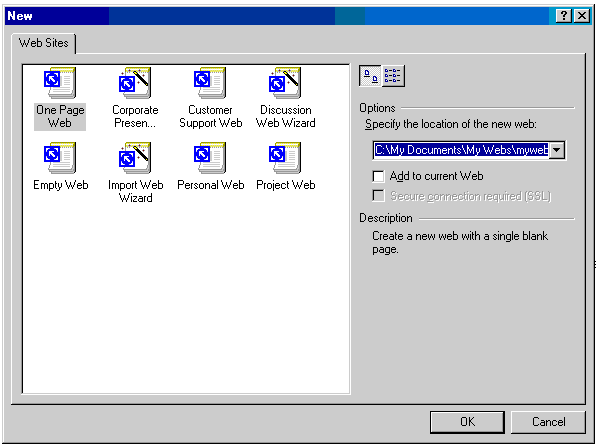
There are two ways to name your web, neither of which I like,
and wish were more intuitive:
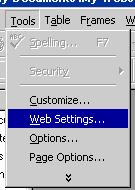
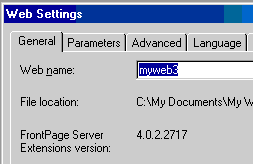
1) Click Okay, then choose Tools... Web
Settings... from the menu, and change the Web Name under the General
tab:
2) Edit the location of the new web directly, by typing a
new name at the end of the path (in the highlighted blue, above). Then
click Okay.
At this point you now have an empty web. FrontPage
created a folder in the specified place, with the name you chose. For
example, if you chose the name of the web to be Ancient Art, then
FrontPage made a folder for you, named My Documents \ My Webs \ Ancient Art.
FrontPage puts all the files it needs for that web site into that
folder. Eventually, when you publish your page, this is where you'll
find the files you need.
FrontPage also makes one page for you named index.htm.
Double-click on it to open it.
Note: If you don't see the Folder List with index.htm
in it, look under View... Folder List to turn it on.
At this point, you're ready to start editing your page.
In many ways, FrontPage works like a word processor, just begin typing what
you want to appear on the web page. Experiment with different colors, font
sizes, etc.
When you're done, just do File... Save, then close
Front Page.
Next: Opening/Editing
Webs